

Key Points
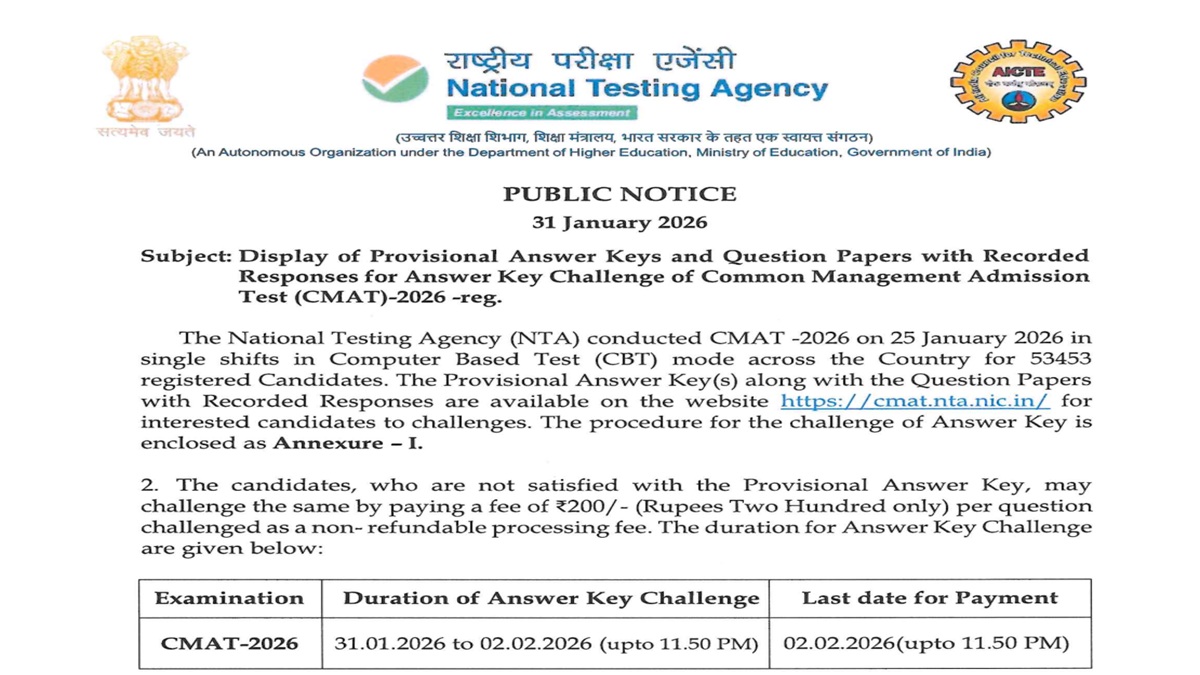
- CMAT 2026 provisional answer key PDF is now available at cmat.nta.nic.in
- Last date to raise objections on answer key is February 2, 2026
- Fee of Rs 200 applicable for objections filed
CMAT 2026 Provisional Answer Key Released: The National Testing Agency has released the CMAT 2026 provisional answer key. Candidates who have appeared for the CMAT exams can download their Provisional answer key PDF on the official website. The window for candidates to raise objections on the CMAT 2026 provisional answer key is available from today, January 31, 2026, to February 2, 2026. Candidates are advised to follow the steps provided to submit the objections on the answer key.
Candidates must note that the challenges made by the candidates will be verified by the panel of subject experts. If the challenge of any candidate is found correct, the Answer Key will be revised and applied in the responses of all the candidates accordingly. Based on the revised Final Answer Key, the result will be prepared and declared.
CMAT 2026 Provisional Answer Key - Click Here
CMAT 2026 Answer Key Challenge - Click Here
CMAT 2026: Procedure for Challenge of Provisional Answer Key
Follow the steps given below to raise objections on the CMAT 2026 provisional answer key
Step 1: Visit the official website cmat.nta.nic.in
Steps 2: Click 'Challenge (s) regarding Answer Key.
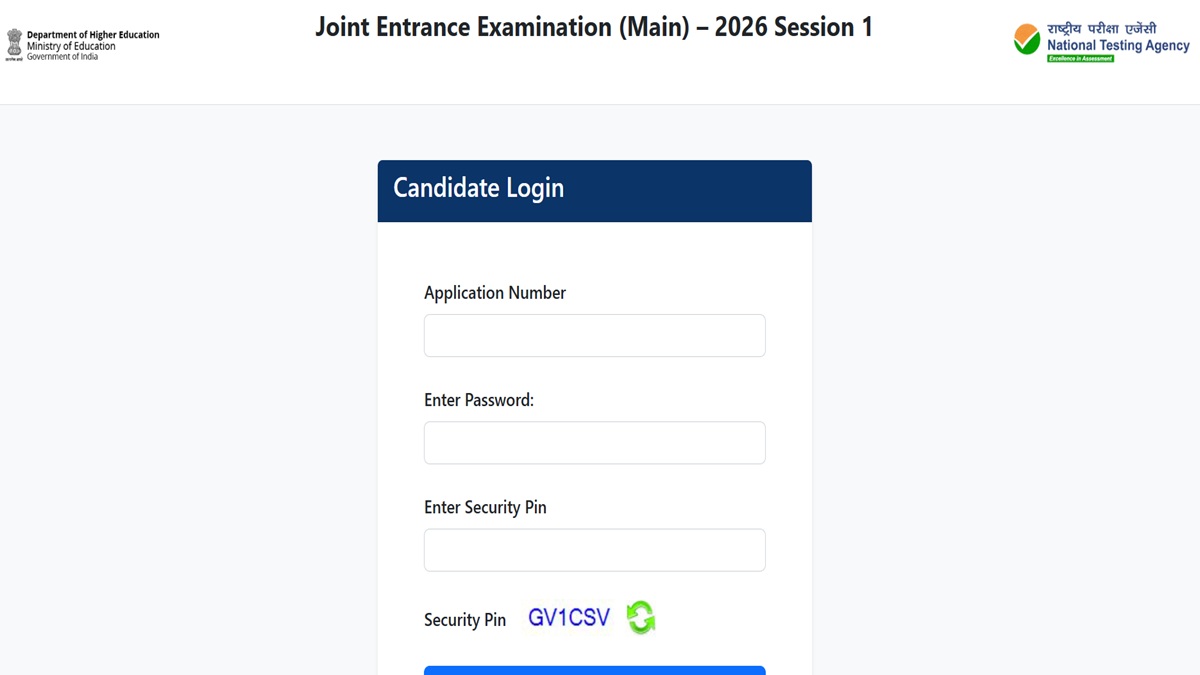
Step 3: Login with your Application Number and Password and enter the captcha as displayed and submit.
Step 4: Click on "View Question Paper" for marked/recorded responses
Step 5: To challenge the Answer keys, click on the link "Click to view/Challenge Answer Key".
Step 6: The Question IDs in the Answer Key list are not presented in sequential order.
- Candidates are advised to refer to the Question Paper and match the corresponding Question IDs to those listed in the Answer Key.
- The ID next to the question under the column 'Correct Option(s)' stands for the correct Answer Key to the question.
Step 7: Use any one or more of the Option IDs given in the next four columns by clicking the check box.
Step 8: Upload supporting documents by selecting 'Choose File' and upload (all documents to be put in a single pdf file).
Step 9:Scroll down and click on 'Submit and review Claims'
Step 10: The Option IDs challenged will be displayed
Step 11: Click on 'Modify your Claims' to modify the claims OR 'Final Submit'.
Step 12: After saving the claims a screen displaying the challenges will be displayed
Step 13: Submit the fee by clicking on 'Pay Now'. The claims will be saved finally after the successful payment of requisite fee.


Comments
All Comments (0)
Join the conversation